Skip to content

Digital Accessibility for Social Media
A practical playbook for planning, creating and managing accessible social media content

1. The case for accessible social media
Social media is often the first point of contact between organisations and the public.
For many people, it is:
- A customer service channel
- A source of official updates
- A place to learn, engage and participate
- A way to access events and campaigns
Your audience may include people who:
- Use screen readers
- Have low vision or colour vision deficiency
- Are deaf or hard of hearing
- Have dyslexia or other learning differences
- Are neurodivergent
- Use speech input software
- Turn off images to reduce distraction or save data
If your content is not accessible, some users are excluded from information, services, and participation.
Accessible social media is not an optional enhancement. It is part of inclusive digital communication.
2. Set accessibility objectives
Accessibility should not be added at the end of a campaign.
When defining social media objectives, include accessibility goals such as:
- All posts include alt text where supported
- 100% of videos published with captions
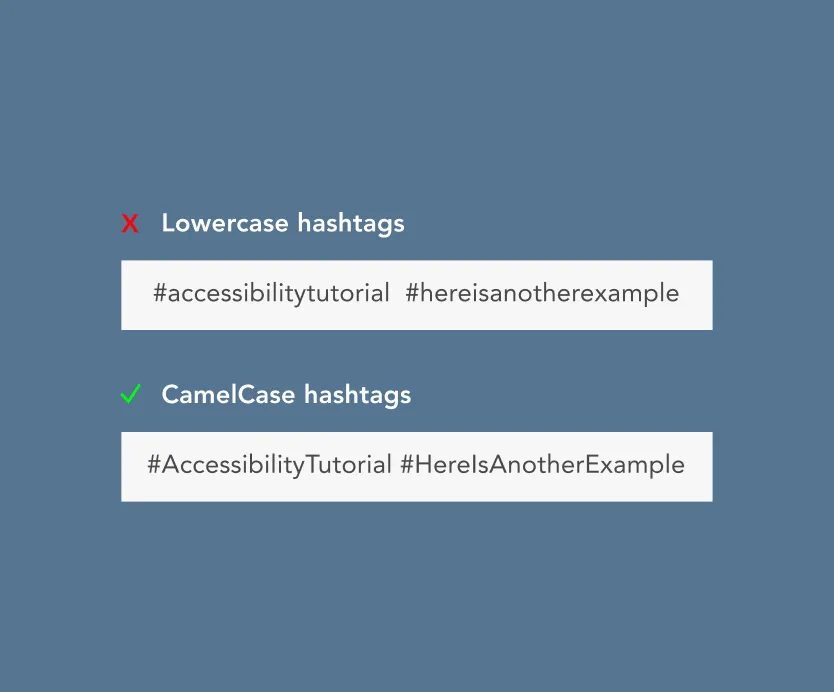
- Hashtags written in CamelCase
- No key information presented only in images
- All campaign assets reviewed for colour contrast
Build these into your KPIs and creative briefs.
3. Social listening through an accessibility lens
Social listening can help you:
- Identify recurring accessibility complaints
- Spot users asking for alternative formats
- Understand barriers in your content
- Detect confusion caused by unclear messaging
Look for comments such as:
- “Can you share this in text?”
- “I can’t read the graphic.”
- “There are no captions.”
- “The link doesn’t work with screen reader.”
Feed these insights back into your content strategy.
4. Audience insight and inclusive design
Platform analytics can tell you:
- When people are online
- What devices they use
- What content formats perform best
Accessibility requires you to go further and ask:
- Can this content be understood without sound?
- Can this content be understood without sight?
- Is it easy to read on a small screen?
- Is the language clear and direct?
Design for multiple modes of access:
- Visual
- Auditory
- Textual
- Keyboard navigation
5. Accessible content strategy
Your content strategy should explicitly include:
- Accessibility standards you will follow
- Clear content pillars
- Accessible design patterns
- A crisis process that includes accessible communication
- Editorial review for accessibility before publishing
Accessibility should be a required sign-off step, not a “nice to have”.
6. Writing accessible social posts
Plain, structured language
- Use short sentences.
- Use line breaks.
- Avoid jargon and internal acronyms.
- Put key information first.
Hashtags
Use CamelCase for multi-word hashtags.
| Example: | #DigitalAccessibility |
| Not: | #digitalaccessibility |
This improves screen reader pronunciation and readability.
- Avoid using more than 2–3 hashtags.
- Place hashtags at the end of posts where possible.
Emojis and symbols
Use emojis sparingly as Screen readers read out emoji alt text literally.
This can:
- Interrupt flow
- Create confusion
- Introduce unintended meaning
Avoid decorative symbol strings like:
| !!! | ———— |
These are read aloud character by character.
7. Images and graphics
Every image should be assessed for accessibility.
7.1 Alt text
Where platforms allow, always add descriptive alt text.
Alt text should:
- Describe the meaning, not just the appearance
- Be concise but informative
- Not repeat surrounding text unnecessarily
If a graphic contains important information, that information must also appear in the post text.
Do not place essential details only inside an image, such as:
- Dates
- Prices
- Registration links
- Deadlines

7.2 Text in images
Avoid embedding text in images where possible.
If unavoidable:
- Repeat the text in the post caption
- Ensure high contrast between text and background
- Avoid small font sizes
7.3 Colour and contrast
Do not rely on colour alone to convey meaning.
For example:
- Do not use red vs green only to show good vs bad
- Use labels, patterns or text to reinforce meaning
Ensure sufficient contrast between text and background.
8. Video and audio
Video content must be accessible by default.
8.1 Captions
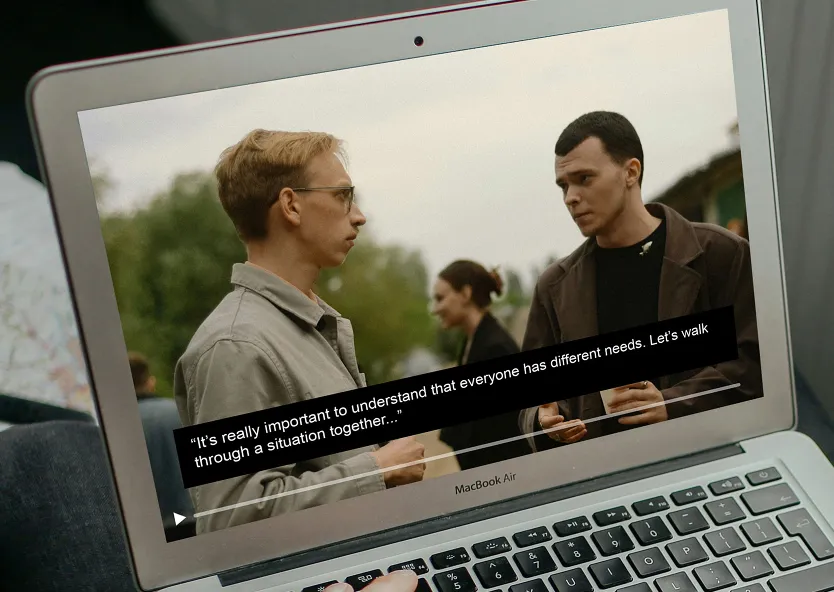
All videos should include captions. and should:
- Be accurate
- Include speaker identification where relevant
- Include important sound cues
8.2 Transcripts
Provide transcripts where possible, especially for:
- Longer videos
- Educational content
- Webinars
- Policy announcements
8.3 Visual clarity
Avoid:
- Rapid flashing
- Overly busy animations
- Tiny on-screen text
Ensure
- Key points are spoken and shown in text
- The content makes sense without sound
9. Platform-specific accessibility considerations
X (formerly Twitter)
- Use CamelCase hashtags
- Keep posts concise
- Add alt text to images
- Ensure videos have captions
- Avoid overloading posts with hashtags
YouTube
- Add or edit captions for accuracy
- Provide transcripts
- Use clear titles and descriptions
- Avoid misleading thumbnails
- Ensure spoken content aligns with visuals
- Use clear, professional language
- Avoid long dense paragraphs
- Add alt text to images
- Caption all uploaded videos
- Do not use tools to generate bold or italics
- Stick to plain text
- Use CamelCase hashtags
- Add alt text manually (do not rely on auto descriptions)
- Include key information in captions
- Caption all videos and Reels
- Avoid placing essential text in Stories without repetition in post text
- Keep caption structure clear
10. Community management and accessibility
Accessible communication includes how you respond.
Response standards
- Acknowledge accessibility issues promptly.
- Avoid defensive language.
- Offer alternative formats quickly.
Example:
Thank you for flagging this. We are adding captions and will share a text version shortly.
Escalation
Have a clear process for:
- Accessibility complaints
- Discrimination concerns
- Content that excludes or misrepresents disabled people
Include accessibility in your traffic-light escalation system.
11. Editorial calendars and accessibility planning
When building an editorial calendar:
- Plan time for captioning and alt text writing.
- Avoid last-minute uploads without accessibility review.
- Include awareness days related to disability and inclusion.
- Schedule content reviews for accessibility quality.
Accessibility takes time. Build it into production timelines.